A message in the Slack channel you choose, the moment something happens to one of your
posts. It works while your computer is off, because the message is sent by our servers and
not by your browser.
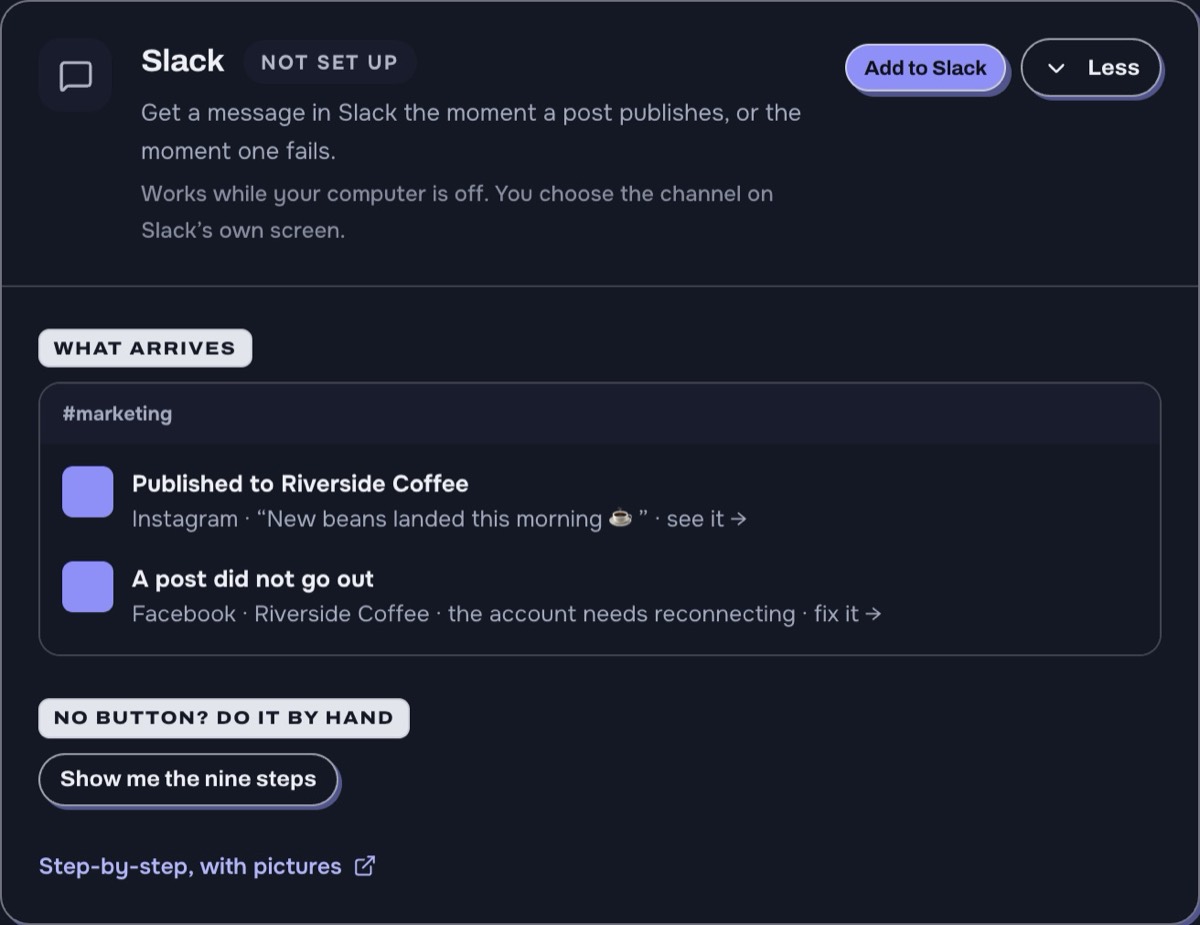
The examples on the screen are the real shapes. This is what lands in your channel.
Four things can be sent, and you tick the ones you want:
A post went out — every time something publishes.
A post did not go out — something needs your attention.
A post was scheduled — useful when more than one person schedules.
Your numbers finished updating — quiet housekeeping. Most people leave this off.
The first three are on to start with. You can change them any time, and the change takes
effect immediately.
The one-press way
In SupahPost, open Settings › Connections.
On the Slack row, press Add to Slack.
Slack shows you its own screen, listing what SupahPost is asking for — permission to
post to one channel — with a channel picker at the top.
Choose the channel your team actually reads, then press
Allow.
You come straight back. The row now says which channel it is posting to.
Press Send a test. A message should appear in that channel within a
few seconds.
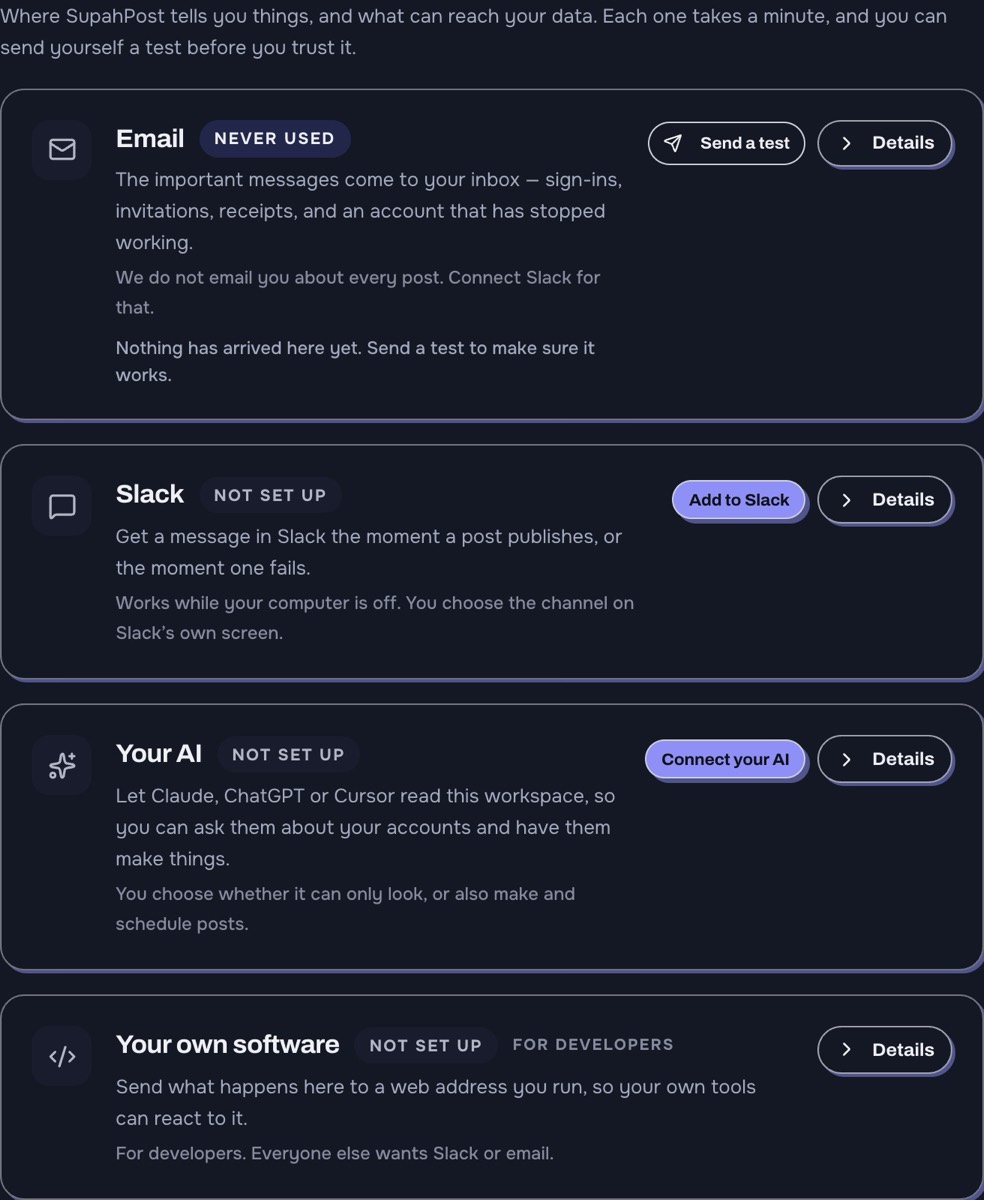
Settings › Connections. The Slack row is the second one.
SupahPost cannot read anything in your Slack. The only permission it asks
for is to post to the one channel you pick on that screen. It has no access to your
messages, your other channels, your files or your members, because it never asks for it —
and a Slack app can only do what it asked for. You can see exactly what was granted at any
time under Apps in your Slack settings, and remove it there in one click.
If there is no Add to Slack button
Some workspaces do not have the one-press option — usually because your Slack
administrator restricts which apps can be installed, or because you are on a self-hosted
copy of SupahPost. The by-hand route works everywhere and takes about five minutes.
Press Details on the Slack row, then
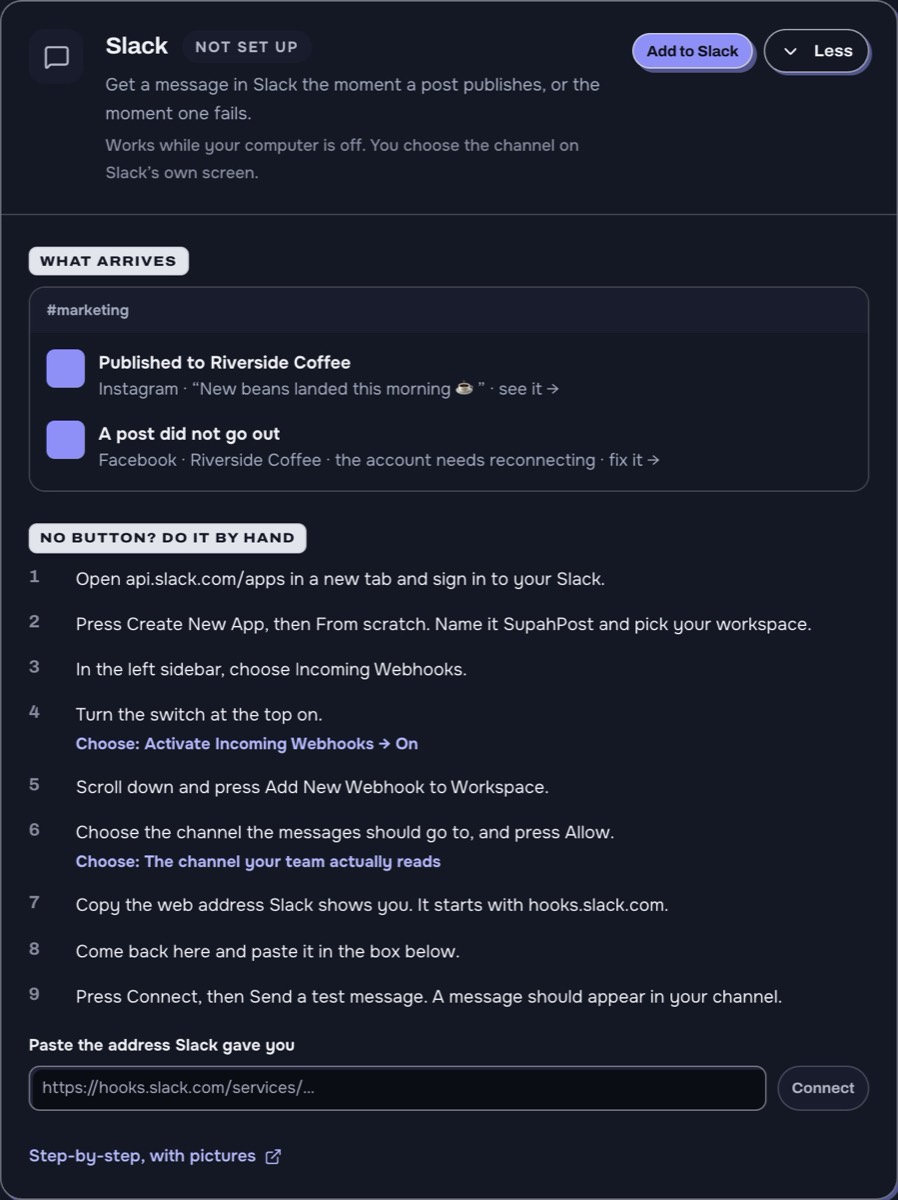
Show me the nine steps. The steps are on the screen as you do them:
The nine steps, and the box you paste the result into, on one screen.
Press Create New App, then From scratch. Name it
SupahPost and pick your workspace.
In the left sidebar, choose Incoming Webhooks.
Turn the switch at the top on. Activate Incoming Webhooks → On.
Scroll down and press Add New Webhook to Workspace.
Choose the channel the messages should go to, and press Allow.
Copy the web address Slack shows you. It starts with hooks.slack.com.
Come back to SupahPost and paste it into the box.
Press Connect, then Send a test message.
Slack's own instructions for the same thing are at
api.slack.com/messaging/webhooks
if you would rather follow theirs. Checked 2026-09-08.
Treat that address like a password. Anyone who has it can post into that
channel. We encrypt it before storing it and never show it back to you in full — the
screen shows the last four characters so you can tell two connections apart. If you ever
paste it somewhere public, delete the webhook in Slack and make a new one.
Sending some of it somewhere else
A Slack channel is chosen once, when you connect, and everything goes there. If you want
publishing news in one place and problems in another, open the Slack row's
More channels section and add a second address for each. Slack gives you
one address per channel, so this is the only way to split them.
Each one has its own Send test button, and the test goes through exactly
the same routing a real message does — so a test that lands proves the real thing will.
Nothing arrived
In order of how often it turns out to be each one:
Nothing has happened yet. The messages are about posts publishing and
failing. If nothing has published since you connected, nothing will have been sent.
Press Send a test — that does not wait for anything.
It is paused. The row says Paused if it is. Press
Resume.
Everything is unticked. Open the row and check that at least one thing
under Send me is ticked.
The channel was archived, or the app was removed from it. Slack keeps
accepting the address but the message goes nowhere. Re-connect and pick a live channel.
Somebody removed the app in Slack. Check Apps in your
Slack settings. If SupahPost is not there, connect it again here.
If Send a test reports an error, that error came from Slack and is worth
reading — it usually names the problem exactly. If it says it sent and nothing arrived,
the address is pointing at a channel that no longer exists.
Turning it off
Pause stops the messages and keeps the connection, so you can turn it
back on without setting anything up again. Disconnect removes the stored
address entirely; nothing more is sent, and connecting again means choosing a channel
again. Both are on the Slack row under Details.
You can also remove SupahPost from your own side, in Slack, under
Apps. That stops the messages immediately whatever this screen says.