
Blog
Connect Claude to your own analytics in three steps
Copy one link, add it as a connector in Claude, approve. Then ask your own AI what your posts did last month and get an answer from your real numbers. With screenshots of every step.
You can give Claude a read-only key to your own SupahPost workspace, and then ask it questions about your posts in plain English. It takes about a minute. There is no config file, nothing to install, and nothing to type except your own question at the end.
This post is the whole thing, screen by screen. If you only read the three headings, you will still be able to do it.
What you are actually doing
You are giving your AI a key-card to your own analytics: read-only, yours, and revocable at any time. Nothing more mysterious than that.
The thing behind it has an ugly name — an MCP server, for Model Context Protocol. That is the standard that lets an AI assistant call software directly instead of you copying numbers into a chat window. The name does not matter. What matters is the three properties of the key-card:
- It opens one building. Your workspace, and nothing else — not your billing, not another customer's data.
- It is read-only unless you say otherwise. The default key looks and cannot touch.
- You can take it back. One button, effective immediately, no notice period.
The rest of this post is how to hand it over.
Step 1 — copy your link
Open Connect your AI in SupahPost and press Copy beside your link. That is the whole step. The link is your workspace's own address; there is nothing in it to fill in or edit.
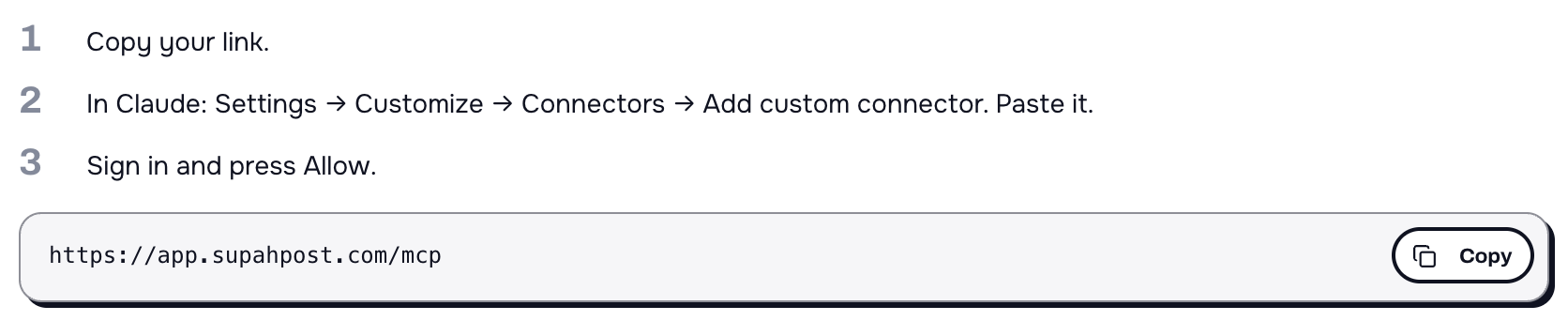
The link ends in /mcp. Treat it like a password: anyone holding it and able to sign in as you could read your numbers. It is not a secret in the way a bank card is, but it is not a thing to post in a public forum either.
Step 2 — add it as a connector in Claude
In Claude, open Settings → Customize → Connectors, then press Add → Add custom connector. This works on claude.ai in a browser and in the Claude desktop and mobile apps. (Checked 2026-09-03, in the product, and the way in had moved: Connectors used to sit directly under Settings and now lives under Customize. Claude's settings move around; if the wording has changed again, look for "Connectors" or "custom connector".)
On claude.ai in a browser you can skip the menu entirely — the Open Claude button under your link on the Connect your AI page opens this dialog for you, ready for the link you copied.
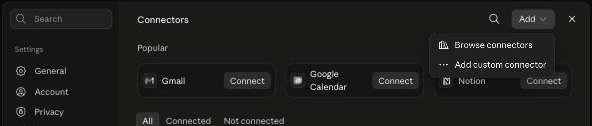
Give it a name, paste your link, and press Continue. Two fields, nothing else.
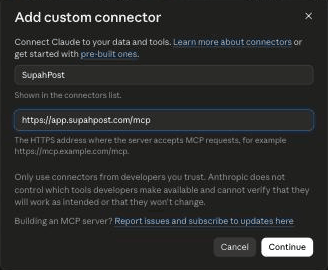
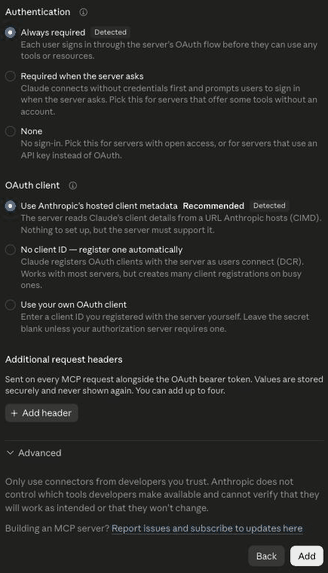
SupahPost. Remote MCP server URL — your own link from step 1. Then Continue.Claude then checks the server and fills the next screen in for you. Keep what it detected and press Add. The two settings that matter are both marked Detected and both are already selected — and the OAuth client one is the option Claude also marks Recommended, so its recommendation and what it detected are the same thing. There is nothing to change.
Step 3 — paste, approve, done
Claude sends you back to SupahPost to sign in and approve. You will see exactly what you are agreeing to, in a sentence rather than a permissions matrix, and then you press Allow access. If it asks you to sign in first, sign in — it is your own SupahPost account.
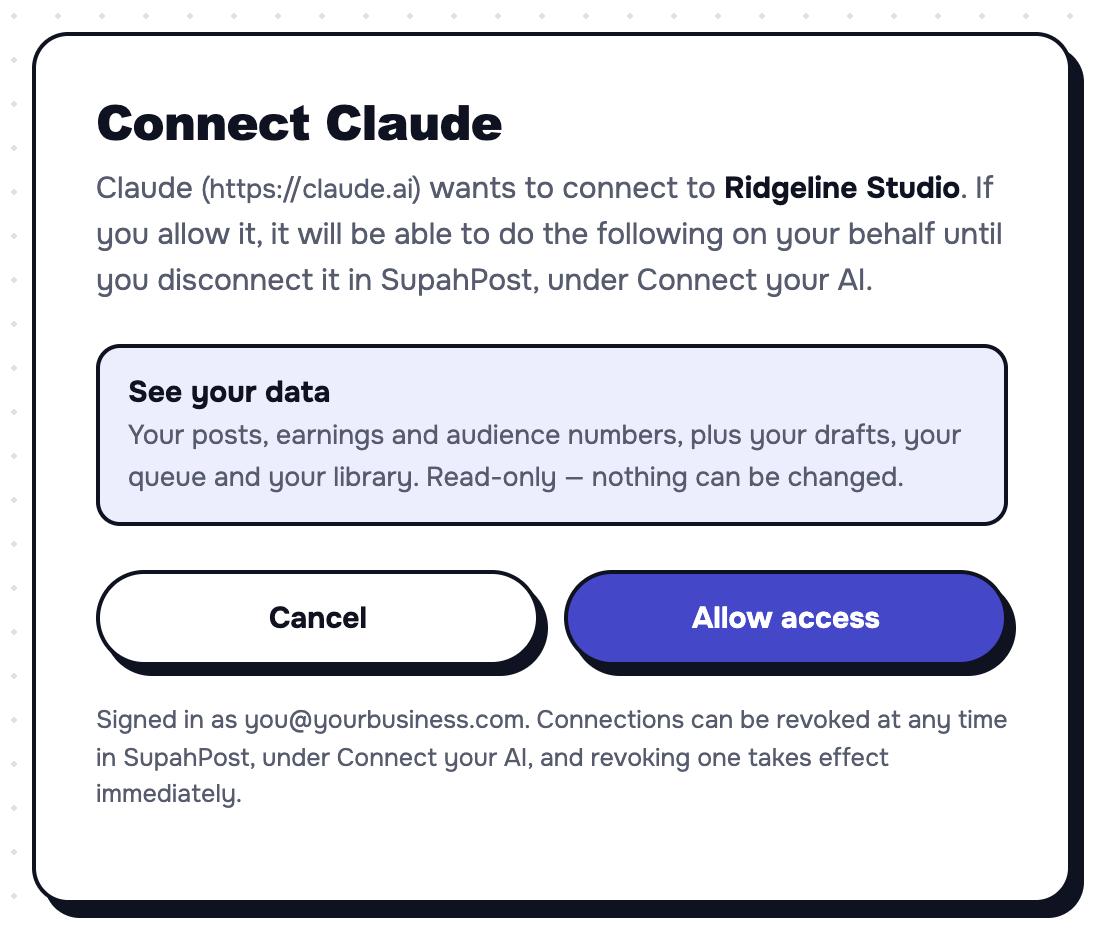
That is it. Claude now has a read-only view of your workspace, and you can close the settings screen and go and ask it something.
What can I ask it?
Anything you would ask an analyst who could see your accounts. The useful ones are comparisons, rankings and "why" questions — the sort of thing that would otherwise be twenty minutes of exporting and squinting.
The page itself gives you one to start with, under the steps, with a Copy button so you can paste it straight in:

What actually comes back?
Structured data about your own posts, which Claude then reads and talks to you about. It is not reading a screenshot of a dashboard and guessing — it asks for the numbers and gets the numbers.
Here is one real round trip, run against a sample workspace:
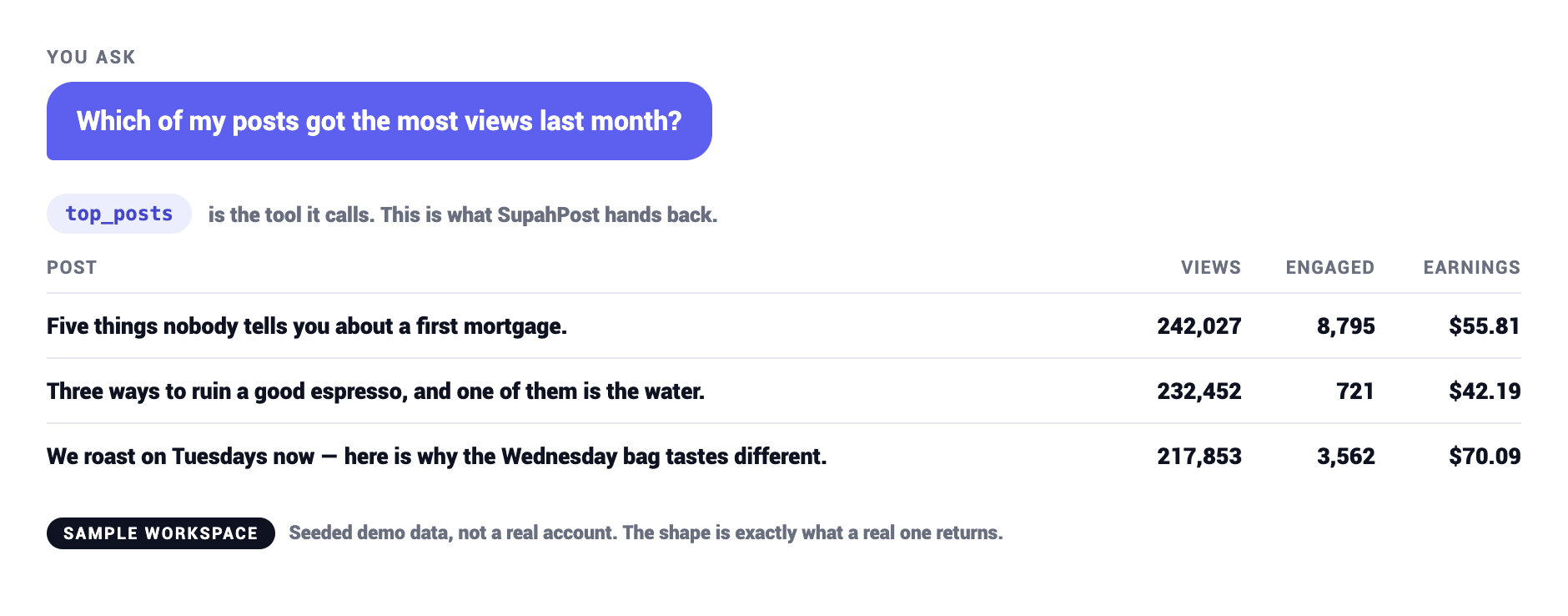
What that means in practice is that follow-up questions work. You ask which posts did best, and then you ask what they had in common, and Claude goes and reads those specific posts — including the text inside the images, which SupahPost has already read for you — rather than inventing a theory.
A rough map of what to expect back:
| If you ask | What comes back |
|---|---|
| "Which posts earned the most last month?" | A ranked list of your own posts, with views, engagement and earnings per post |
| "How many views last week versus the week before?" | Two totals and the difference, per account or combined |
| "Break my earnings down by day of week" | One row per day, with the rate per thousand views |
| "Where are my followers, and when should I post?" | Follower counts and trend, a country and age breakdown, and the posting slots learned from that account's own history |
| "What themes worked last month?" | Your posts for that window, read as text, so it can group them by meaning rather than keyword |
| "What is in my drafts?" | Your unscheduled drafts and your queue, with times |
If a number does not exist for your workspace — no monetized page means no earnings — you get told that, rather than a zero. A zero is a claim, and a claim nobody measured is worse than a gap.
What can it not do?
By default: change anything at all. The key you get from the flow above is read-only. It cannot post, schedule, delete, edit, or touch your billing, your users or your connected accounts.
If you want more, you choose it deliberately, and there are two further rungs:
| Level | Can | Cannot |
|---|---|---|
| Read (the default) | See every number, post, draft and queued item in the workspace | Change anything at all |
| Schedule | Also put posts on your calendar, move them, cancel them | Publish anything immediately — every time it sets is at least five minutes out |
| Publish | Also send an existing post to your accounts right now | Post without showing you a preview and asking again first |
A key's level is fixed when it is made. A read-only key can never become a publishing key. If you want an AI that fills your calendar, you make a second key — most people keep the read-only one for everyday questions and add a Schedule key later, once they trust it.
How do I use it with Claude Code, Cursor, or something else?
Those tools take a key rather than a link, and the same page writes the exact block for you. Open Connect your AI, pick your tool — Claude Code sits beside the Claude app, and Any other app covers the rest — and make a key. The page puts it into a copy-paste command with your own address already filled in.
For Claude Code that is a single line in your terminal:
claude mcp add --transport http supahpost https://app.supahpost.com/mcp \
  --header "Authorization: Bearer YOUR_KEY"
For anything else that speaks MCP, there are only three values: the transport (HTTP), the URL, and an Authorization: Bearer header. That is the whole configuration.
How do I take it back?
Open Connect your AI, find the key under Your keys, and press Revoke. It takes effect immediately — the next thing the AI tries to do fails, with no delay and no grace period.
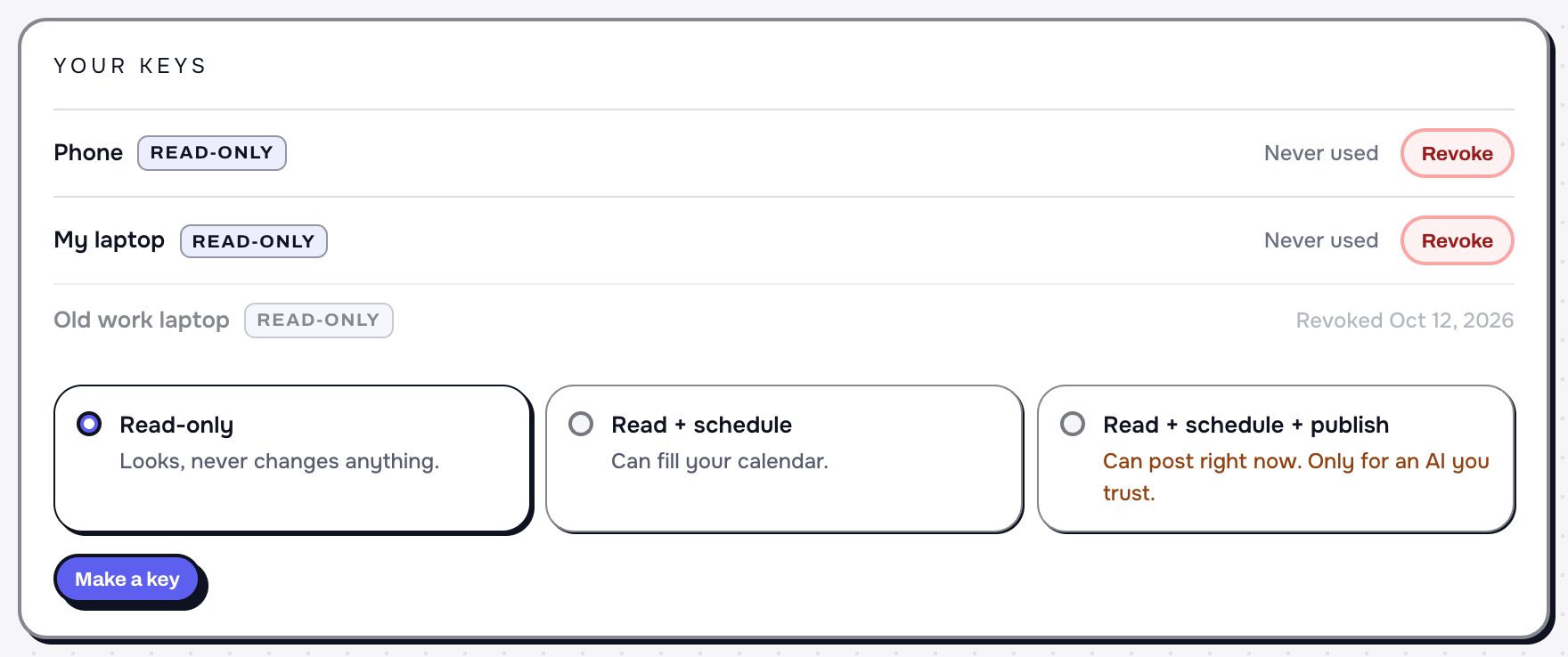
Two smaller things worth knowing while you are in there:
- A key is shown once. It is stored only as a hash, so nobody — including us — can read it back to you. If you lose one, revoke it and make another.
- Each key shows when it was last used. Beside every key is the time your AI last used it, so "is something using this key" always has an answer.
It did not work — what now?
Almost every failure is one of four things:
| What you see | What it means |
|---|---|
401 Unauthorized | The key is mistyped or revoked. Keys are shown once; if you did not copy it, revoke it and make a new one. |
| The client connects but sees no tools | The Authorization header did not survive the paste. Re-copy the block rather than retyping it. |
| "This key can’t schedule posts" | The key is read-only. Make a second key with Schedule; keep the read-only one for questions. |
| "Publishing is turned off for this workspace" | Publishing is disabled workspace-wide, so no key can post. Nothing was sent. |
Is this safe?
The honest answer is that it is as safe as the level you pick, and the default level cannot change anything. The parts that are not a matter of trust:
- A key only ever sees your own workspace. It cannot return another workspace's data, even if the AI asks for it.
- Read-only is the default, and moving off it is a deliberate choice with its consequences written on the screen you make it on.
- Revocation is immediate, and revoked keys stay visible as revoked, so you can always see what you took back.
What you are trusting, genuinely, is your own AI assistant with a view of your business. That is a real decision and worth a minute's thought — which is why the default key looks and cannot touch, and why the level you gave it is written next to every key on the page.